How to Use iTAK with Meshtastic on iPhone
For years, iPhone users were locked out of Meshtastic + TAK. That changed in Feb 2026! The Meshtastic iOS app now has a built-in TAK server, letting iTAK connect directly to your LoRa radio over Bluetooth. No Android or Python needed. Here is the complete guide to setting it up from zero.
For years, iPhone users were locked out of the Meshtastic + TAK combination entirely. ATAK runs on Android. The plugin architecture Apple uses doesn't allow external plugins the way Android does. iOS users were told to buy an Android device or sit this one out.
That changed in February 2026. The Meshtastic iOS app now has a built-in TAK server that lets iTAK and TAK Aware connect directly to your LoRa radio over Bluetooth — no Android, no plugin sideloading, no Python scripts. This guide walks you through the entire setup from zero, explains exactly what's happening under the hood, and tells you what to watch out for before you take this into the field.
What You're Actually Building
Before touching any settings, understand the architecture. This matters because it explains every limitation you're going to run into.
The Meshtastic iOS app acts as a translator and bridge between two completely different worlds:
- iTAK speaks CoT, Cursor on Target, a verbose XML protocol designed for servers with real bandwidth
- Your LoRa radio speaks Meshtastic mesh packets, compact, binary, designed for narrow LoRa bandwidth
The Meshtastic iOS app sits between them. It spins up a local TAK-compliant server on your phone. iTAK connects to that local server exactly like it would connect to a cloud TAK server. Behind the scenes, the Meshtastic app translates CoT XML into mesh packets, sends them over Bluetooth to your radio, and translates anything incoming back into CoT for iTAK to display.
The full chain:
iTAK → [local TCP on your phone] → Meshtastic iOS app → [Bluetooth] → LoRa radio → mesh
Every link in that chain needs to be alive for this to work. Keep that in mind.
What You Need
- iPhone or macOS running iOS 15 or later
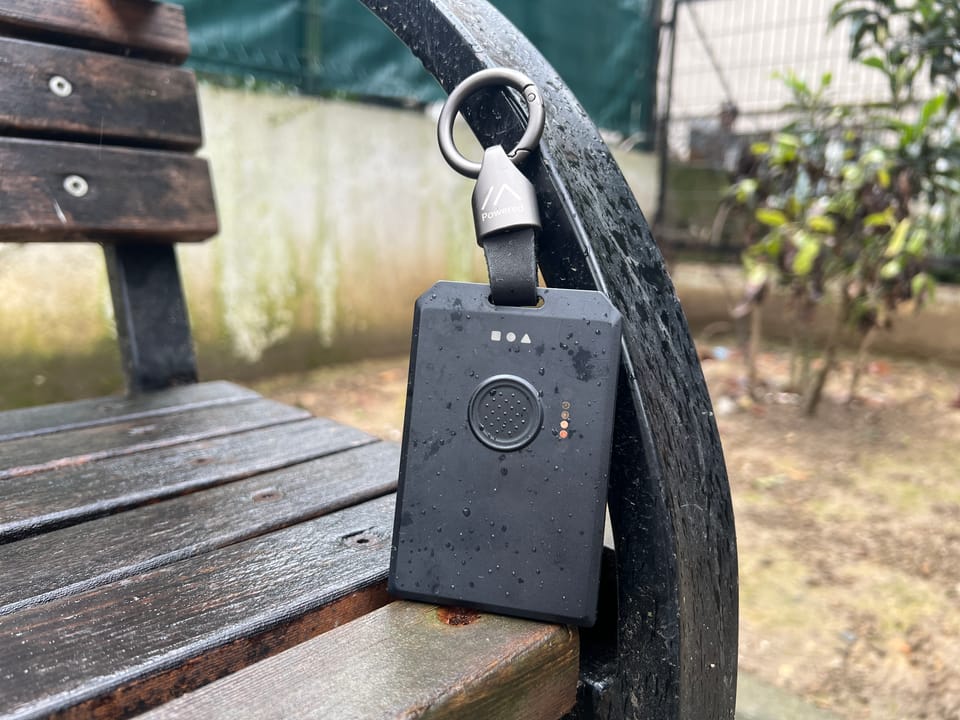
- Any Meshtastic device, the integration is hardware-agnostic
- Meshtastic iOS app, latest version from the App Store (the TAK server was added in the February 2026 update, make sure you're not on an old version)
- iTAK or TAK Aware, both are free on the App Store
- Your Meshtastic device already configured and connected to the iOS app via Bluetooth
If you haven't set up your Meshtastic node yet, do that first. The complete Meshtastic getting started guide covers everything from flashing firmware to first pair.
Step 1: Flash Latest Firmware
Don't skip this. The TAK integration requires up-to-date firmware on your node. Older firmware versions won't translate CoT correctly and you'll get silent failures that are very hard to debug.
Flash using the Meshtastic Web Flasher in Chrome or Edge. Select your device, pick the latest stable release, flash it. Two minutes.
Step 2: Change Your LoRa Preset to Short Fast or Short Turbo
This is the most important configuration change and the one most people skip, then wonder why things are broken.
TAK generates significantly more radio traffic than standard Meshtastic usage. Every position update, every marker, every chat message goes out as CoT XML which is larger than a regular Meshtastic message. The default LongFast preset doesn't have the bandwidth to handle it reliably. Meshtastic themselves explicitly tell you in their documentation to switch presets for TAK.
In the Meshtastic iOS app: Settings → Radio Configuration → LoRa → Preset → Short Fast (or Short Turbo for maximum throughput)
The tradeoff you are making: Short Fast and Short Turbo sacrifice range for bandwidth. LongFast can reach kilometers in open terrain. Short Turbo cuts that range significantly. If your group is spread across large distances, you'll need more relay nodes to compensate.
The device will reboot after saving this change. That's normal.
Step 3: Set Up Your Channel with Encryption
All TAK data transmits through your primary channel. By default that's the public LongFast channel, unencrypted, visible to anyone on the mesh. You do not want your team's live positions and comms going out in the clear.
Before doing anything with iTAK, set up a private encrypted primary channel in the Meshtastic iOS app:
Settings → Radio Configuration → Channels → Channel 0
- Give it a name your team will recognize
- Set a PSK (pre-shared key) — this enables AES-256 encryption
- Enable Precise Location on this channel
- Hit Send to push the changes to your radio
Every person in your group needs to import this same channel config. The easiest way is through the QR code, in the Meshtastic app go to the Channels screen, tap the share icon, and have each team member scan it. Their radio gets the exact same channel name and encryption key in one scan.
If anyone on your team has the wrong channel config, they will not appear on your map and you will not appear on theirs. There's no error message. They just silently don't exist. Set this up carefully.
Step 4: Enable the TAK Server in the Meshtastic App
With your radio connected and channel configured:
Settings → scroll to the bottom → TAK Server → toggle it on
The Meshtastic app spins up a local TAK-compliant server endpoint on your phone. You'll see an option to download a Data Package, do this now. That data package is what you'll import into iTAK in the next step. It contains the server address (localhost), the port, and any configuration iTAK needs to connect.
Keep the Meshtastic app in the foreground or at minimum make sure your iPhone doesn't kill it. If iOS backgrounds the Meshtastic app and suspends it, the local TAK server goes offline, iTAK loses its connection, and your data stops flowing over the mesh. You won't see an obvious error, positions just stop updating. This is the single biggest operational gotcha with this setup.
Step 5: Install iTAK and Import the Data Package
Download iTAK from the App Store, it's free. Open it and go through the initial callsign setup (this is your identifier that other TAK users will see on their maps).
To connect iTAK to your Meshtastic app's local TAK server:
Settings → Network → Server → Add Server (+) → Upload Server Package
Select the data package you downloaded from the Meshtastic app in the previous step. iTAK will import the server configuration automatically and connect to the local endpoint.
If the connection is successful you'll see your server listed as active in iTAK's network settings. Your position should start appearing on the map.
Step 6: Verify It's Actually Working
Don't assume it's working, verify it before you're in the field.
Check 1: Your position: Open iTAK's map. Your own callsign marker should be visible at your current GPS location.
Check 2: Mesh traffic: In the Meshtastic iOS app, check your node list. If another team member with a Meshtastic node sends a message or their position updates, you should see activity.
Check 3: Cross-device: Have another team member with an Android device running ATAK (or another iPhone with the same setup) confirm they can see your callsign on their map. If they can't, your channel config doesn't match, go back to Step 3 and verify the encryption key is identical on both devices.
Check 4: Drop a marker: In iTAK, drop a marker on the map. It should propagate through the Meshtastic app, out over the mesh, and appear on other TAK clients connected to the same mesh.
What Works and What Doesn't
What works:
- Live position sharing (PLI) between TAK clients over the mesh
- Chat text messaging between TAK clients
- Markers and Points of Interest propagating across the mesh
- Cross-platform. Android ATAK users and iOS iTAK users see each other
What has limitations:
- Large data packages, images, and video are not supported, the bandwidth simply isn't there on LoRa
- The Meshtastic app must remain active, iOS background suspension breaks the bridge
- Range is reduced compared to LongFast, account for this in your mesh planning
- Every team member needs correct firmware, correct app version, and identical channel config, one mismatch means silent failure
The Version Problem (Read This)
This matters more than people realize. Meshtastic uses Protocol Buffers for data serialization, and the protobuf definitions have changed significantly across firmware versions. If your firmware and app versions don't match, devices on the mesh can't communicate properly with each other.
For the Android side specifically (relevant if you have mixed iOS/Android teams): as of March 2026 the tested combination is ATAK-CIV 5.6.0 + Meshtastic ATAK Plugin v1.1.40 + Meshtastic Android App v2.7.13 + Firmware v2.7.15. The community recommendation is to disable automatic updates for both ATAK and the Meshtastic Android app once you have a working setup, an unexpected update can break the whole thing.
For the iOS side, just stay on the latest Meshtastic iOS app from the App Store. The TAK server feature was only added recently so the latest version will always be the most compatible.
Keeping the Chain Alive in the Field
The architecture requires the Meshtastic app to stay running as your TAK bridge. In practice:
- Keep the Meshtastic app in the foreground when you need TAK working. Don't switch apps and forget about it.
- Disable Low Power Mode on your iPhone during ops, iOS aggressively suspends background apps in low power mode
- Plug in if possible, running both iTAK and the Meshtastic app with Bluetooth active will drain your battery faster than normal
The Bottom Line
iOS + Meshtastic + iTAK is real and it works. The setup is more involved than anything the Meshtastic community is used to, it's a chain of apps, settings, version requirements, and iOS background behavior quirks that all have to line up correctly. When it does, you get genuine tactical situational awareness with live positions, markers, and comms over LoRa with no cell towers.
Know the tradeoffs going in: reduced range, two apps running simultaneously, sensitivity to iOS app suspension, and the bandwidth limits of LoRa meaning no images or large packages. Plan your mesh density accordingly, set up encryption before you leave, and test the full group connection before the day of the op.
If all of this sounds like more than you want to manage and you just want a group map that works on Meshtastic with minimal setup, that's what Flaresat is for. Different tool, different use case, same radio.